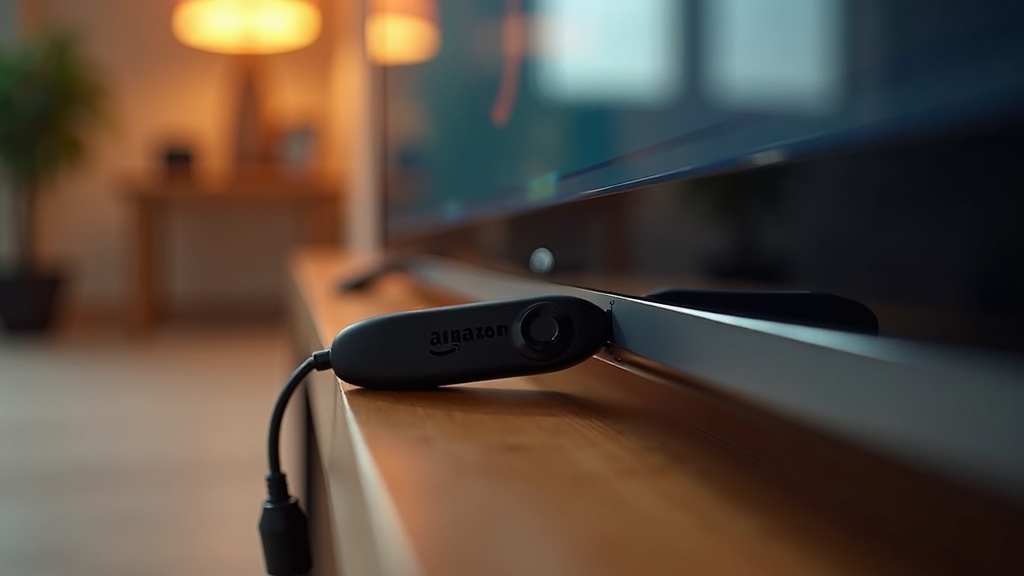
Master the Art of Sideloaded Apps on Your Amazon Fire Stick in 2026
Are you tired of dealing with app blocking issues on your Amazon Fire Stick? Our team has got you covered. In this comprehensive guide, we'll walk you through the latest changes to Amazon's app blocking policies and provide a step-by-step guide on how to sideload apps securely and efficiently. By the end of this article, you'll be able to enjoy your favorite streaming services and live TV channels on your Fire Stick without any hassle. We understand that app blocking can be frustrating, especially when you're in the middle of binge-watching your favorite show or enjoying live sports. That's why our team has put together this expert guide to help you navigate the latest updates and stay ahead of the game. So, let's dive in and explore what's changed and how to sideload apps like a pro.
What You Need Before You Start
- A compatible Amazon Fire Stick device (4th generation or later)
- A computer or mobile device with internet access
- A reputable sideloading app (e.g., Downloader or ES File Explorer)
- A stable internet connection (at least 15 Mbps for HD streaming)
Before you start sideloading apps on your Amazon Fire Stick, make sure you have the necessary prerequisites in place. Our team recommends using a reputable sideloading app, such as Downloader or ES File Explorer, to ensure a smooth and secure experience. Additionally, ensure you have a stable internet connection with a minimum speed of 15 Mbps for HD streaming. This will ensure that your streaming experience is uninterrupted and of high quality.
Step-by-Step Guide
- Enable Apps from Unknown Sources on Your Fire Stick: Go to Settings > System > Developer Options and toggle the switch to enable Apps from Unknown Sources.
- Download and Install a Sideloaded App: Use a reputable sideloading app to download and install the app of your choice. Make sure to follow the app's instructions carefully.
- Configure the App: Once installed, configure the app according to your preferences. This may include setting up login credentials or adjusting streaming settings.
- Start Streaming: Finally, start streaming your favorite content on the sideloaded app. Enjoy your favorite shows, live sports, and premium channels without any app blocking issues.
Sideloaded apps can be a game-changer for Amazon Fire Stick users. By following our step-by-step guide, you can enjoy your favorite streaming services and live TV channels without any hassle. Our team recommends taking the time to configure the app according to your preferences, as this will ensure an optimal streaming experience.
Recommended Settings and Requirements
| Setting | Value | Why |
|---|---|---|
| Internet Speed | 15 Mbps (HD) / 35 Mbps+ (4K) | For optimal streaming quality and to avoid buffering issues. |
| Sideloaded App | Reputable sideloading apps (e.g., Downloader or ES File Explorer) | For a secure and efficient sideloading experience. |
| Fire Stick Device | 4th generation or later | For compatibility with the latest sideloading features. |
| App Blocking Policy | Enabled (by default) | To prevent unauthorized app installations. |
| Developer Options | Enabled | To allow sideloading apps from unknown sources. |
By following our recommended settings and requirements, you can ensure a seamless sideloading experience on your Amazon Fire Stick. Our team recommends paying close attention to internet speed, as this will directly impact the quality of your streaming experience. Additionally, using a reputable sideloading app and enabling developer options will help you sideload apps securely and efficiently.
Troubleshooting Common Problems
| Symptom | Likely Cause | Fix |
|---|---|---|
| App blocking or restriction on Amazon Fire Stick | App not licensed for your region or device | Check the app's licensing status and ensure it's compatible with your device |
| Failed sideloading attempts | Incorrect sideloading process or incompatible device | Refer to our How to Sideload Apps on Amazon Fire Stick guide for assistance |
| Buffering or playback issues | Internet connection or device performance issues | Check your internet speed and device performance, and consider upgrading if necessary |
| Missing or corrupted app data | App update or installation issue | Try reinstalling the app or updating to the latest version |
| Unstable or unresponsive app | App compatibility or software issue | Check for software updates and ensure the app is compatible with your device and operating system |
How to Prevent This Going Forward
- Regularly check for app updates and ensure you're running the latest version
- Verify the app's licensing status and compatibility with your device before sideloading
- Use a reputable and licensed IPTV service, such as the best IPTV subscription in Canada, to access a wide range of premium channels and live sports
- Consider using a device-specific app, such as TiviMate, which offers a seamless viewing experience and is easily set up using our How to Set Up TiviMate on Fire Stick and Android TV (2026) guide
Our team recommends taking proactive steps to ensure a smooth and enjoyable viewing experience. By staying up-to-date with the latest app updates and using reputable and licensed services, you can avoid common problems and enjoy access to a wide range of premium content.
When It's Time to Switch Providers
If you're experiencing persistent issues with app blocking or restriction, it may be time to consider switching to a reputable and licensed IPTV service. Our team recommends carefully evaluating your current provider and exploring alternative options that offer a wide range of premium channels and live sports. When choosing a new provider, be sure to research their licensing status and compatibility with your device to ensure a seamless viewing experience. For those in the UK, we've also put together a guide on Best IPTV for Firestick in the UK (2026) to help you make an informed decision.
The Bottom Line
Don't let app blocking or restriction ruin your viewing experience. By troubleshooting common problems, taking proactive steps to prevent issues, and choosing a reputable and licensed IPTV service, you can enjoy access to a wide range of premium content and live sports.
Frequently Asked Questions
What is app blocking on Amazon Fire Stick?
App blocking occurs when an app is restricted or blocked on your Amazon Fire Stick device, preventing you from accessing its content. This can be due to various reasons, including licensing issues or device incompatibility.
How do I sideload apps on Amazon Fire Stick?
Sideload apps on Amazon Fire Stick by enabling the "Apps from Unknown Sources" option in the device settings, then installing the app from a third-party source, such as our How to Sideload Apps on Amazon Fire Stick guide.
What is the best IPTV subscription in Canada?
The best IPTV subscription in Canada is a matter of personal preference, but our team recommends choosing a reputable and licensed service that offers a wide range of premium channels and live sports. For more information, visit our website.
How do I set up TiviMate on Fire Stick and Android TV?
Set up TiviMate on Fire Stick and Android TV using our How to Set Up TiviMate on Fire Stick and Android TV (2026) guide, which provides step-by-step instructions for a seamless viewing experience.
Can I use a VPN with my IPTV service?
Yes, you can use a VPN with your IPTV service to access geo-restricted content and enhance your viewing experience. However, be sure to check with your provider for any VPN compatibility requirements.