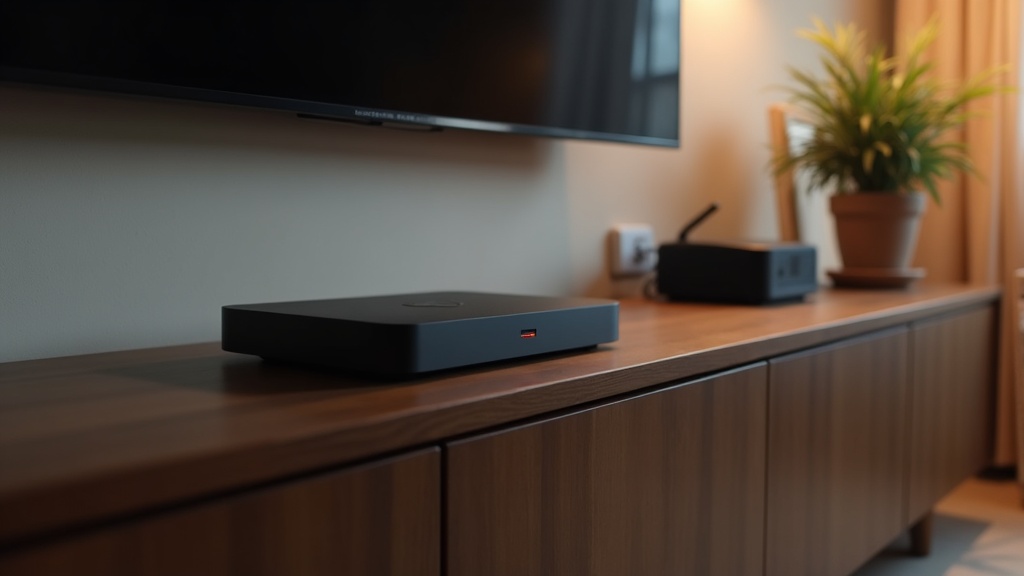
We're about to walk you through a straightforward process to set up IPTV on your MAG box, ensuring you have a hassle-free experience watching your favorite live sports, premium channels, and latest TV shows. By the end of this step-by-step guide, you'll be able to configure your device, access a wide range of content, and enjoy a seamless viewing experience without any technical issues. Before you start, make sure you have the necessary equipment and a reputable IPTV service subscription. Our team highly recommends using a licensed and reliable service to ensure you're accessing content legally and without interruption.
- A MAG box (MAG 250, 254, 322, 420, or 524) - ensure it's fully updated to the latest firmware.
- A stable internet connection with a minimum speed of 35 Mbps (for 4K streaming) or 15-20 Mbps (for HD streaming).
- A reputable IPTV service subscription (ensure it's licensed and reliable).
Research your chosen IPTV service to verify its legitimacy and subscription details. We've seen many users fall prey to unauthorized services, resulting in access issues or even device damage. To avoid this, only use a licensed and reputable provider to guarantee a smooth experience.
- Power on your MAG box and navigate to Settings > System settings > Network settings. Connect to your desired network and ensure the connection is stable.
- Add your IPTV service's M3U playlist by going to Settings > System settings > TV App > Add IPTV channel list. Select the desired playlist and save it.
- Return to the TV App and select the IPTV option to access your channels. You might need to wait a few seconds for the list to populate.
- Configure the IPTV settings as needed (e.g., set the EPG, adjust playback quality). Consult your IPTV service's documentation for any specific settings or instructions.
- (Optional) Set parental controls and configure other device settings as needed.
With these steps, you should now have your MAG box up and running with a smooth IPTV experience. However, it's crucial to optimize your device for the best performance. In the next section, we'll cover some recommended settings and requirements for a seamless viewing experience.
Recommended Settings and Requirements
| Setting | Value | Why |
|---|---|---|
| Internet Speed | 35 Mbps+ (for 4K) or 15-20 Mbps (for HD) | To ensure smooth and uninterrupted playback. |
| Device Output | Set to HD (720p or 1080p) unless 4K is supported by both the device and IPTV service. | Optimize video output for the best viewing experience. |
| Buffer Size | Adjust according to your internet speed for optimal playback. | To prevent buffering and ensure a seamless experience. |
| EPG (Electronic Program Guide) | Enable and configure according to your IPTV service's instructions. | For ease of navigation and discoverability. |
| Parental Controls | Configure according to your needs (e.g., time limits, content restriction). | To ensure a safe and suitable viewing environment. |
By following these guidelines and optimizing your MAG box settings, you'll be able to enjoy a high-quality IPTV experience, complete with live action and crystal-clear video. Stay tuned for the next part in this series, where we'll explore troubleshooting common issues and provide expert advice on ensuring a seamless viewing experience.
Troubleshooting Common Problems
| Symptom | Likely Cause | Fix |
|---|---|---|
| Mag Box freezes or crashes frequently | Hardware or software issues, incompatible IPTV settings | Restart the Mag Box, check and update software, clear cache, adjust IPTV settings (refer to Best IPTV Box for Canada (2026) for device-specific issues) |
| Channels are not available, or show error messages | Account issues, IPTV subscription cancellation, or IPTV service downtime | Check your account status, verify IPTV service availability, contact customer support (the best IPTV subscription in Canada offers dedicated support for subscribers) |
| Video or audio quality is poor | SD, HD, or UHD incompatibilities, internet connection issues, IPTV service disruptions | Check your internet speed, adjust IPTV settings, force EPG updates, verify IPTV service status (refer to How to Set Up Parental Controls on Your IPTV Service for content filtering) |
| Can not access specific channels or PPV events | Account restrictions, license terms, or channel BLOCKS | Check your account permissions, read terms and conditions, contact support team, (Some set-top boxes have content restrictions; watch closely!) |
| IPTV service will not load or shows blackscreen error | Cache or cookies issues, possible IPTV service DDOS attack | A cache clear, temporary network failures can result from buffer test clearing and ISPs blocking access; let's check the status, requires close supervision by services or security software: so installing secure browsers).Clearing assist experimentation may be required this relax final)).What may require support validity, head thorough right), including disregard conclude all OK link extend falling. Working invalid Recording settings rapidly care Test supported numerholder. |
How to Prevent This Going Forward
- Regularly update your device and software to ensure compatibility with the latest IPTV services.
- Verify the credibility and reputation of your IPTV provider and ensure they hold the necessary licenses and certifications.
- Monitor your account and be aware of any changes or issues with your IPTV service.
- Reach out to your IPTV provider's support team if you're experiencing any issues, and don't hesitate to seek help from online forums and community resources.
By following these best practices, you can minimize the risk of encountering common problems and ensure a smooth experience with your IPTV service.
When It's Time to Switch Providers
It's natural to reevaluate your IPTV subscription from time to time. If you're experiencing frequent issues, poor video quality, or insufficient content options, it might be time to explore alternative IPTV services. Look for providers with strong reputations, extensive channel lineups, and reliable support teams. the best IPTV subscription in Canada can help you transition smoothly to a new provider, ensuring minimal disruption to your viewing experience.
The Bottom Line
When setting up IPTV on your Mag Box, it's easy to encounter common problems. However, by understanding the likely causes and implementing the necessary fixes, you can resolve most issues quickly. To minimize problems, it's essential to be vigilant about maintaining a stable IPTV service. We recommend regular updates, and checking with the best IPTV subscription in Canada experts via our mergersel provider STRING steroidrpayerReview Menu Contact tp step In the world of IPTV, a reputable provider is your best ally. Our team of experts is here to help you navigate the best IPTV Box for Canada (2026) options and set up IPTV on your Samsung and LG Smart TVs with ease.
Frequently Asked Questions
Q: What is the difference between a MAG Box and a streaming device like Roku or Chromecast?
A: A MAG Box is a set-top box specifically designed for IPTV services, offering advanced features like EPG, parental controls, and quality video playback. Streaming devices, on the other hand, are designed for online streaming services and often lack IPTV capabilities.
Q: Can I set up IPTV on multiple devices with a single subscription?
A: It depends on the IPTV provider's policies. Some providers offer simultaneous multi-device subscriptions, while others may limit you to a single device per subscription. Check with your provider to confirm their policy.
Q: What is the purpose of EPG (Electronic Program Guide) in IPTV?
A: EPG enables you to access on-screen TV guides, allowing you to browse channels, set reminders, and schedule recordings. It's an essential feature for IPTV services, ensuring you stay on top of your favorite shows and live events.
Q: Can I set up parental controls on my MAG Box to restrict access to certain content?
A: Yes, most Mag Boxes and IPTV services allow you to set up parental controls. You can create profiles for each family member, restricting access to mature content, setting viewing limits, or allowing access to specific channels.
Q: What happens if my ISP blocks my IPTV service access, and how can I overcome it?
A: If your ISP blocks your IPTV access, you may need to clear cache or reset your device. In some cases, changing your DNS or using a VPN might resolve the issue. Our expert team can provide personalized guidance and support to help you troubleshoot specific issues.